Add Features to
Windows Speech Recognition
WSRToolkit v.3
Create Speech macro shortcuts for your PC without programming,
Increase voice-to-text accuracy, and
Create a personalized user system that perfectly matches your needs.
Software for WSR (Windows Speech Recognition)
We specialize in extension software for Windows™ Speech Recognition (WSR) - the free "speech recognition" system built into Microsoft's™ most recent operating systems (thoroughly tested in Vista through to the new Windows™ 11). Our WSRToolkit v.3 includes easy to create macro shortcuts without programming and accuracy features among others.
WSR itself allows a user to control applications and the Windows™ desktop user interface through voice commands. Users can dictate text within documents, email, and forms; control the operating system user interface; perform keyboard shortcuts; and move the mouse cursor. The majority of integrated applications in Windows™ can be controlled using WSR.
Our WSRToolkit v.3 works in conjunction with WSR. The default installation of WSR lacks many features taken for granted by users of Dragon NaturallySpeaking™. WSRToolkit v.3 adds these features and more at a price point FAR below it's competitors.
Our WSRToolkit v.3 provides the usability you expect your speech recognition software to have. This includes training the system to understand your specific speech patterns and enunciation clarity!
The building and use of Macros allows detailed actions in applications to be run on demand. One customer wrote: “Using WSRMacros: The User’s Guide and WSRToolkit, I wrote a series of commands for QuickBooks that imported customer and invoice information from our order system. Entering 20-30 orders by hand used to take 1-2 hours a day and now takes less than 2 minutes from start to finish.”
[sp_testimonials_slider category="29"]
Never used Windows™ Speech Recognition? It’s easy to set up!
- First, purchase the best quality headset/microphone within your budget (high-quality input gives the best results).
- Second, open your Windows “Control Panel” and open “Speech Recognition” (visit Wikipedia posting).
- Third, click on the first link to “Start Speech Recognition.” The first screen for setting up speech recognition explains what the feature does and how it works.
- Finally, click Next and you will enter a setup wizard to optimize your microphone.
Now that you have WSR setup and have tested it, you will not see fine-tuning for accuracy, adding shortcuts, transcribing recorded audio or the option to build a custom macro. This is where WSRToolkit v.3 and WSRMacros: The User’s Guide really show their value!
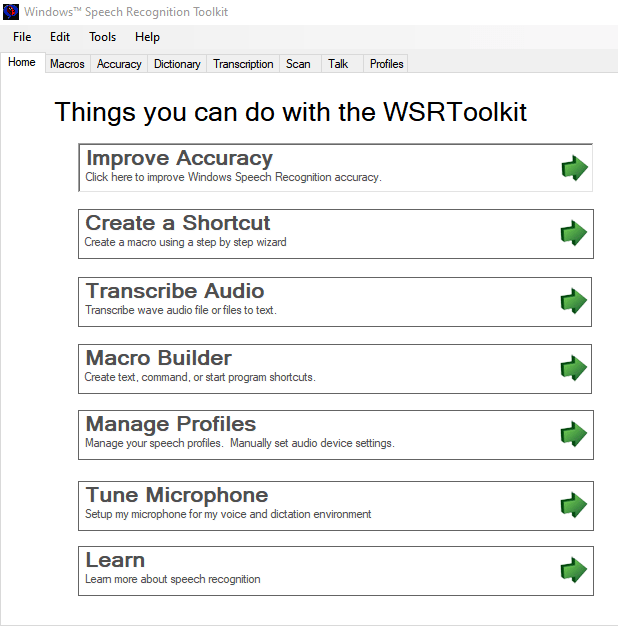
The WSRToolkit v.3 user interface: